As a solo business owner, I understand the pressure of creating engaging social media content consistently, while keeping it on brand and making sure it looks professional.
But what do you do if you’re not a graphic designer, and you can’t afford to waste time staring at a blank screen waiting for inspiration?
Let me introduce you to the new Adobe plugin for Claude AI .
Using a simple conversation in Claude, you can create 24 professional, editable templates in a matter of minutes, and you don’t need any design skills.
Click on the video thumbnail above to watch the exact streamlined workflow I use, from idea to scheduling a professional post to social media without having to leave Adobe Express.
Prefer to read?
Below is the whole 5-step workflow. It's simple, it's repeatable, and it works beautifully for busy solo business owners.
Step 1: Connect Adobe to Claude AI
The first step is to connect Adobe with Claude. You only need to do this once, and it takes less than a minute.
Open the side column in Claude.
Click Customise, then go to Connectors.
If you can't see the Adobe connector, click Show all.
Click the ‘+’ icon next to the Adobe connector.
Sign in to your Adobe Express account when prompted.
Once you're signed in, you'll be taken back to Claude. A little notification in the bottom right-hand corner will tell you that you're connected and ready to use more than 80 professional tools from Adobe's creative suite.
Step 2: Turn one sentence into 24 Adobe Express templates
Start a new chat and tell Claude what you need using everyday language. You don’t need to be an AI prompt genius, so just describe the template you have in mind. Be sure to mention Adobe Express when searching for a template.
Then click on the return button.
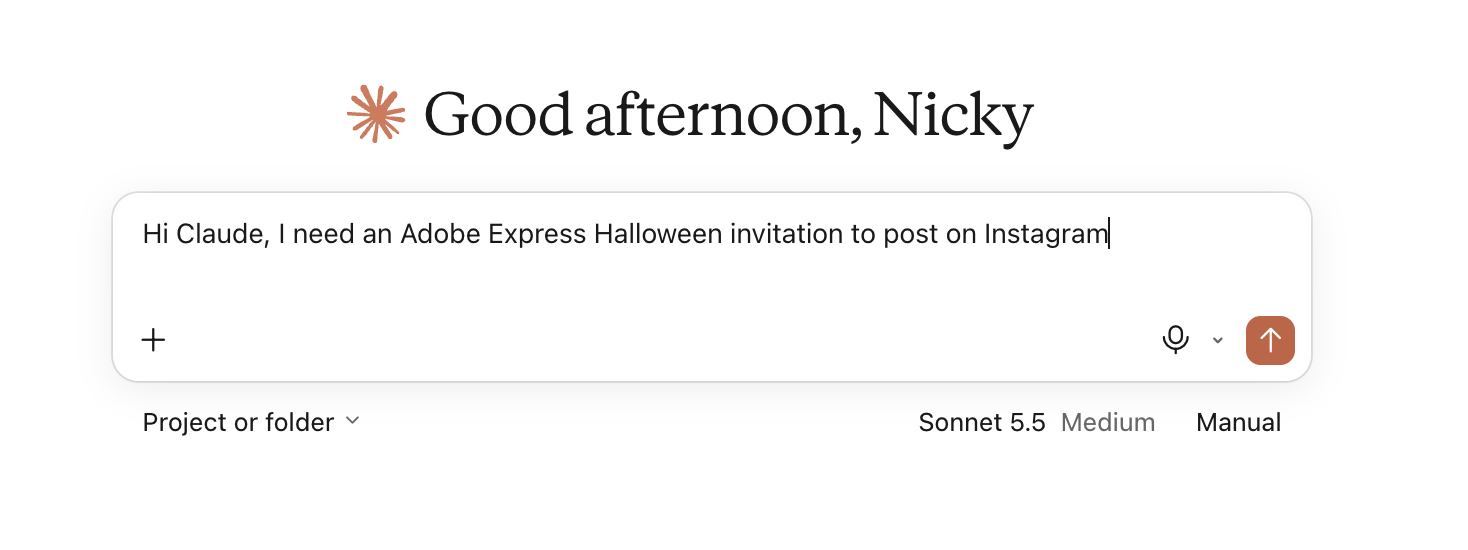
Claude may ask your permission to use certain skills from the Adobe connector, such as searching for a suitable template. Choose whichever permission you're comfortable with and follow the prompts on screen.
After just a few seconds, you'll see 24x professional templates in a carousel, directly in the chat. So rather than scrolling endlessly through thousands of options in Adobe Express, Claude understands the context of your request and gives you a curated selection to choose from.
If you’d like to test out all of Adobe Express’ premium templates and features, just click here for a 30-day free trial. *
Step 3: Make quick template edits inside Claude
Click on the template you'd like to use. From here, you can make quick edits without leaving Claude, such as:
Personalising the text
Changing the background colour
Animating the design
Select the edit you want, then describe the change in the text box underneath, e.g. “change the background colour to pink”. Hit enter and Claude will carry out your instructions.
One important thing to know: designs created in the chat are only stored temporarily and are deleted after 12 hours. To keep a design, open it in Adobe Express, or click the blue Edit more button to carry on making changes.
Step 4: The Adobe Express live editor
The new Adobe Express interactive live editor lives right inside Claude and allows you to make more detailed edits.
It’s such a smooth and seamless process.
Click on the blue “Edit more” button and start swapping stock photos for your own. Or change the text for your own brand fonts with just a couple of clicks so that everything looks unmistakably yours at a glance.
➤ To apply your brand fonts:
Select a text box.
Go to the left-hand side and click the drop-down menu.
Choose your brand kit.
Apply your brand text with one click.
You can resize and reposition text exactly as you would in Adobe Express.
A handy tip: if you'd like several text boxes to match, select one and click Copy style. Then select the next text box and click Paste style.
➤ To change the background to your brand colour:
Click on the background.
Select Edit page.
Click Background colour in the left-hand column.
Pick the right colour from your brand palette.
You can make as many changes as you like. If you're happy with the template, simply download it. Your template will be saved in Adobe Express, so you can go back and edit it at any time.
Alternatively, click the ‘X’ in the top right hand corner of the editor to go back into Claude and add the final finishing touches.
Step 5: Professional Finishing Touches
With your template still open in Claude, click on the “Open in Adobe” button to open your template up in Adobe Express.
This is where you’re going to add those truly professional finishing touches.
➤ Add a logo:
Click Brands in the side column and select the brand you want to work in.
Under Logos, click your logo to add it to the template
Resize and reposition it as necessary.
➤ Run a brand check.
Before you post, do a quick brand check to ensure everything is consistent and on brand. Failure to do so could risk losing the trust of prospective clients and, ultimately, losing sales.
Click Brands again, select the right Brand kit and click “Run brand check” at the top of the column. Adobe Express will flag up any brand issues on the right hand side of your screen. You can fix them one-by-one, or click Fix all issues to sort them in one go.
➤ Resize for Social Media
Once you’ve perfected one template, use the Resize button and choose alternative ratios. Then click Duplicate and resize, or simply Resize. Adobe Express gives you three variations to choose from, so pick your favourite and click Keep.
➤ Schedule your post without leaving Adobe Express
Rather than download your completed template at this stage, save yourself time and effort by scheduling it to social media directly from Adobe Express.
Click on the large blue “Share” button in the top RH corner of the design editor and select the “Schedule post” icon.
A new window will open on your screen.
Choose the social media channel you'd like to post to. For Instagram, select post, reel or story.
Underneath you’ll find a space in which to write your caption. There's even space to add details in your first comment.
There’s a handy Preview button which allow you to see how your post will look when published on social media.
Finally, click the Publish now button, or schedule a date from the interactive calendar. All your scheduled and draft posts will be waiting in your personal calendar.
From blank page to scheduled post in minutes
So now you know how to go from a blank screen to a professional and engaging social media post in minutes.
You’ve also learnt a new productivity workflow which can be repeated as and when needed to save you hours of wasted time and frustration.
You’ll find more videos about using AI to create content as a solo business owner, as well as productivity tips over on my YouTube Channel @NickyPasquier.
Thanks for your interest and I’ll see you next time.
*Affiliate Disclaimer: this is an affiliate link that allows you to find the items mentioned in this blog and support my business at no cost to you. Whilst I may earn minimal sums if you use the link, you are in no way obligated to do so. Thank you for your support.