If you're using AI-generated images for your business, there's a good chance they look air-brushed, unrealistic and a little bit plastic.
The good news is that you can fix this using ChatGPT Image 2.5 in Adobe Firefly.
How to Create Realistic AI Images with GPT Image 2.5 in Adobe Firefly
In this video tutorial, I'll show you step-by-step how to easily create realistic, magazine quality AI images in Adobe Firefly.
You'll also learn how to turn one image into a whole series with the same consistent look and feel, which is perfect for marketing campaigns and social media.
This is what we’ll be covering:
Why plastic-looking AI images can hurt your business
Where to find GPT Image 2.5 inside Adobe Firefly
The difference between the ‘Flare’ and ‘Sunburst’ models
How to generate a photorealistic image with a simple text prompt
How to make precise edits without changing the rest of your image
How to use reference images to create a consistent series of images
Why plastic AI images can hurt your business
Clients often judge your business by how polished your visuals look.
If your AI images have that overly perfect, airbrushed finish, they can come across as fake. Unfortunately, that can chip away at trust before anyone has read a word of your marketing.
Realistic images feel more like genuine photography.
Skin has texture, faces have character, and the whole picture looks like something a professional photographer could have taken.
That's the look we're working towards.
How to find GPT Image 2.5 in Adobe Firefly
GPT Image 2.5 lives inside Adobe Firefly, so there's nothing extra to install.
Here's how to find it:
Open Adobe Firefly in your browser.
In the side column, click Image, then Generate image.
Click the downward arrow next to Model to see the list of AI models.
At the top of the list you'll find Firefly's own AI models. These are free to use and commercially safe. Underneath, you'll see Firefly's AI partner models, including GPT Image 2.5.
You'll need a paid plan to use the partner models.
If you'd like to try them first, you can test the top Firefly features for free for 7 days *.

ChatGPT Image 2.5 ‘Flare’ or ‘Sunburst’: which is best?
You'll notice there are two versions of GPT Image 2.5 in Firefly.
In a nutshell, Flare is the faster, everyday option whereas Sunburst is more precise, and gives more consistent results when you generate different iterations.
I used Sunburst throughout the video tutorial because I preferred the outputs, and consistency matters when you're building a series of images for a campaign.
How to generate a realistic AI photo with ChatGPT Image 2.5
Once you've selected your model, generating an image takes just a few steps:
Select Sunburst as your model.
Choose your aspect ratio.
Set the quality of the output. I chose High.
Type a descriptive text prompt, then click Generate.
If you’re unsure how to write an effective text prompt to generate AI images, here are my top tips:
If writing AI prompts feels a little overwhelming, you're not alone. I've put together a free, detailed guide to help, especially if you don't have any formal training. [Add free AI Photo Prompt Guide link here]

The Realistic AI Photo Prompt Guide GPT Image 2.5
Download your free guide.
What the result looks like
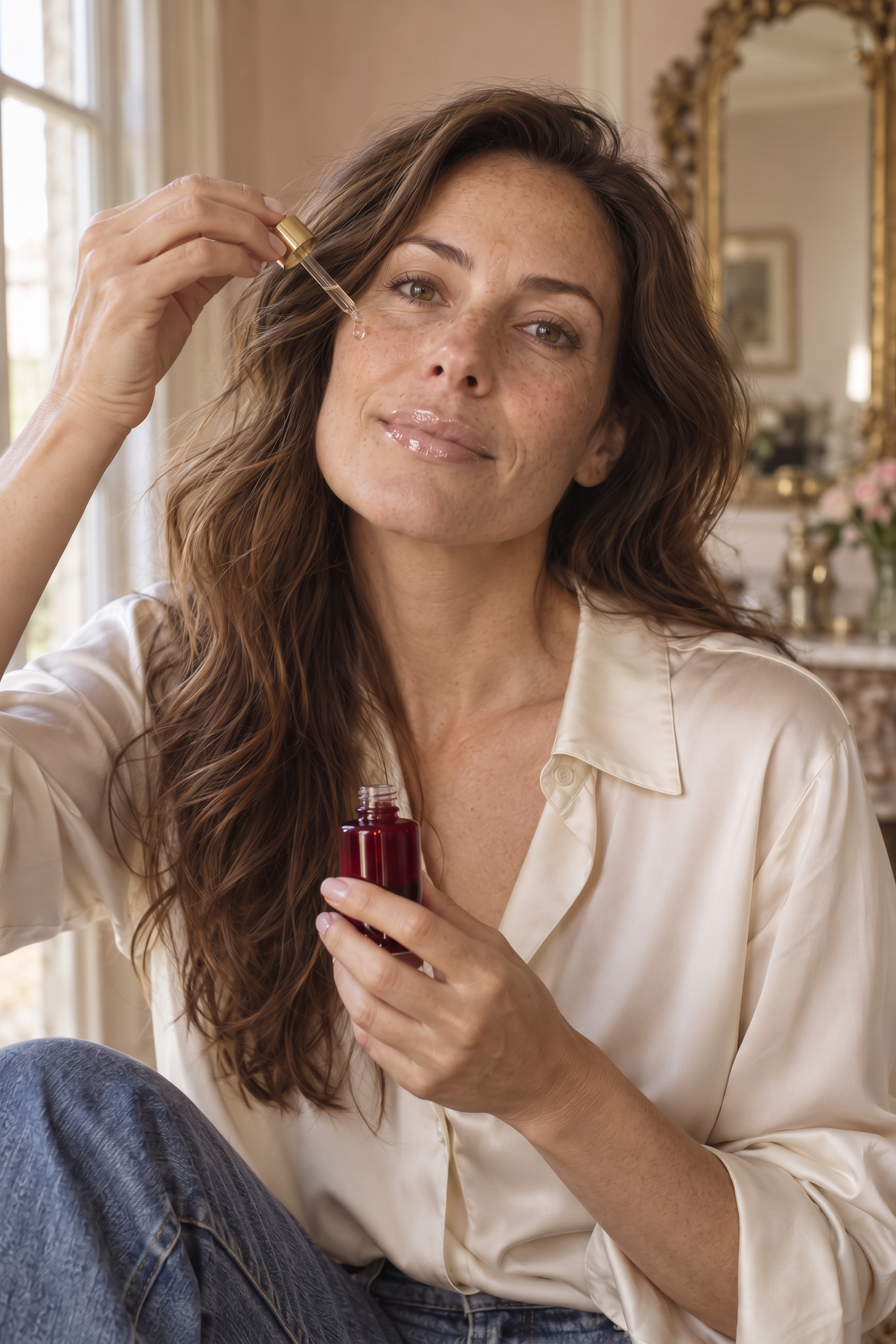
My prompt produced an incredibly photorealistic image of a woman in her mid-forties with long, wavy chestnut brown hair, holding a cherry red bottle of facial serum.
What I love most is that her skin includes minor imperfections, freckles and little wrinkles.
We've lost that overly perfect, airbrushed look that too many AI images have, and that's exactly what makes it feel like a real photograph.
How to make precise edits to your AI image
One of the best things about GPT Image 2.5 is that it can make very precise edits while keeping everything else in the image the same.
I walk you through exactly how to use Adobe Firefly’s incredible image editor to make specific adjustments in the video tutorial.
Here's a quick explanation:
Select your image and click the Edit button in the top left corner.
Choose Edit image to open Firefly's image editor.
Use any of the editing tools in the column in the left-hand side, such as Prompt and Markup. (You’ll see me use the markup tool to add a slick of lipgloss to the woman’s lips in the video tutorial).
Click the blue tick to confirm the details.
Select the AI model you'd like to use for the edit.
Click the blue Generate button.
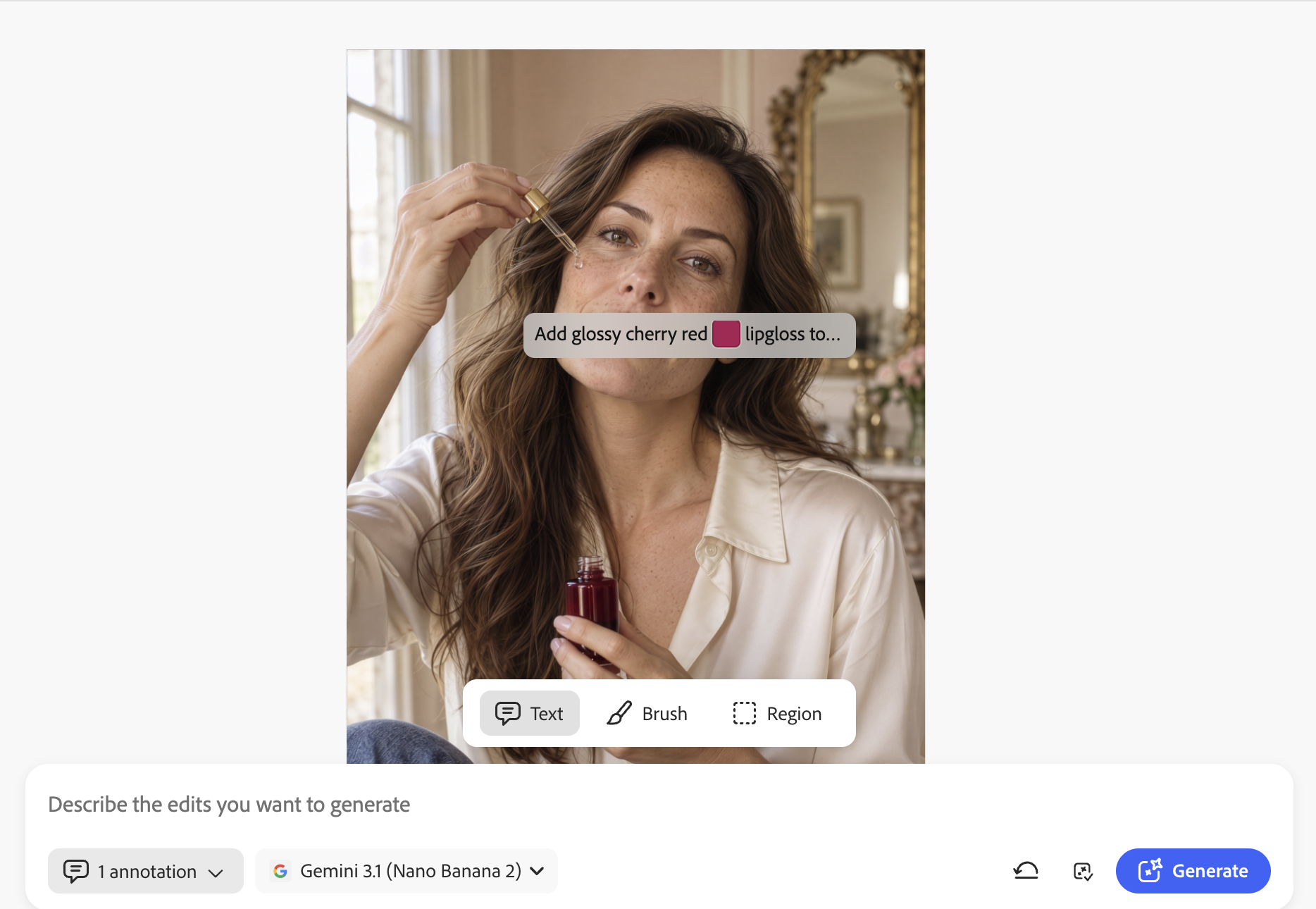
Zoom out and you'll see the AI has generated the changes, exactly as instructed, with the rest of the image untouched.
Firefly's image editor has lots of other powerful AI editing tools too. If you'd like a closer look at them, I've covered them in a separate tutorial (link in the Resources section underneath).
How to generate a consistent set of AI images using reference images
Once you've perfected one image, you now go ahead and use it as a reference to create a whole series for your marketing and social media. This keeps the same look and feel across every picture, which is just what you need for brand consistency.
Select your finished photograph, click Edit, then choose Use as reference image.
Check that your image now appears in the reference image section. You can use up to six reference images in GPT 2.5.
Update your image settings if you need to.
This time you only need to write a shorter text prompt. The reference image informs the AI what to generate, so you don't need to be as detailed this time.
Click Generate.
In my example, I kept the same woman but I wanted to generate an overhead, editorial-style image.
Original AI image

Image generated with a reference
What to do if you get strange AI image outputs
Don't worry if AI gives you some slightly odd outputs. It happens sometimes, and is part and parcel of working with AI. Most issues are easy to fix in one of two ways:
Tweak your text prompt and generate again.
Open the image in Firefly's image editor and make a few very precise edits.
Final thoughts and watch the video
That's how to make AI images look like real photographs using GPT Image 2.5 in Adobe Firefly.
Start with a detailed prompt, refine the result with precise edits, then use your best image as a reference to build a consistent series for your marketing.
If you’re a visual learner, here's the full tutorial on my YouTube channel.
Up Next
Check out how to use Adobe Firefly’s image editor, including removing objects, adding details and resizing images for different social media ratios, watch my image editor tutorial next.
*Affiliate Disclaimer: this is an affiliate link that allows you to find the items mentioned in this blog and support my business at no cost to you. Whilst I may earn minimal sums if you use the link, you are in no way obligated to do so. Thank you for your support.